
• About Us
  • Privacy Policy
  • Disclaimers
  • Terms and Conditions
  • Contact Us
  • DMCA Policy
Tech Chilli
  • AI
  • AI India
  • Robotics
  • Fintech
  • Crypto
  • Courses
  • How-To
  • Gaming
  • Contact Us
No Result
View All Result
  • AI
  • AI India
  • Robotics
  • Fintech
  • Crypto
  • Courses
  • How-To
  • Gaming
  • Contact Us
No Result
View All Result
Tech Chilli
No Result
View All Result

Home » News » Windows 11 AI Powered Features in Paint, Clipchamp, Snipping Tool, and Photos

Windows 11 AI Powered Features in Paint, Clipchamp, Snipping Tool, and Photos

Windows 11's native apps like Paint, Clipchamp, Snipping Tool, and Photos have embraced AI to enhance creativity and productivity. These features are gradually rolling out, offering users innovative tools and capabilities for various tasks, from image creation and video editing to screenshot management and photo enhancement.

francoise hardy by Françoise
Wednesday, 8 November 2023, 10:00 AM
in News
Windows 11 AI Powered Features

Windows 11 AI Powered Features

Microsoft has introduced a slew of AI-powered features in Windows 11 across various native apps. From generating images in Paint to automated video editing in Clipchamp, text recognition in Snipping Tool, and background blur in the Photos app, this article offers a comprehensive guide on how to use these AI enhancements to enhance your Windows 11 experience.

Must Read: Apple Prepares Smarter Siri and Generative AI Features for Launch Next Year

Microsoft has integrated artificial intelligence into various native apps in Windows 11, such as Paint, Clipchamp, Snipping Tool, and Photos. These AI features aim to make tasks more efficient and creative for users. In this article, we will explore how to use these AI-powered features.

How to Use AI in Paint on Windows 11:

Paint in Windows 11 has been upgraded with an AI feature called “Cocreator,” which utilises the DALL-E model to generate images based on text descriptions. To get started:

  • Make sure you have access to Cocreator, available in select regions.
  • Join the waitlist for Cocreator from the Cocreator side panel.
  • Sign in with your Microsoft account to access credits, which are required to generate images.
  • Type a descriptive text for the image you want.
  • Choose a style for your image.
  • Click the “Create” button to generate three images.
  • Select an image and modify it using the Paint canvas.

Additionally, Paint now supports background removal and layers, making it easier to isolate and edit specific elements in your images.

Must Read: How to Use Grok AI Rival of ChatGPT?

How to Use Clipchamp’s AI for Video Editing:

Clipchamp, a video editing tool in Windows 11, offers an auto compose feature that simplifies video editing. To use it:

  • Sign in to Clipchamp.
  • Click “Create a video with AI.”
  • Give your project a title and upload your media.
  • Define your preferred style or let Clipchamp choose for you.
  • Adjust the video length and aspect ratio.
  • Preview and, if needed, change the background music.
  • Export your video for sharing.

Clipchamp also offers AI features for customising videos, including text-to-speech voice overs, subtitles, and a speaker coach tool. Many Clipchamp features are free, but premium tools are available with a subscription.

Interesting Reading: Who is World’s First AI Robot CEO; Mika an AI that runs Dictador company

How to Use Snipping Tool’s AI Features:

The Snipping Tool in Windows 11 now supports text recognition. After taking a screenshot with text, you can:

  • Click the “Text Actions” button.
  • Choose to copy the text or redact private information like email addresses and phone numbers.

The Snipping Tool can work seamlessly with Copilot, allowing you to paste clipped content and perform tasks like background removal with the AI assistant.
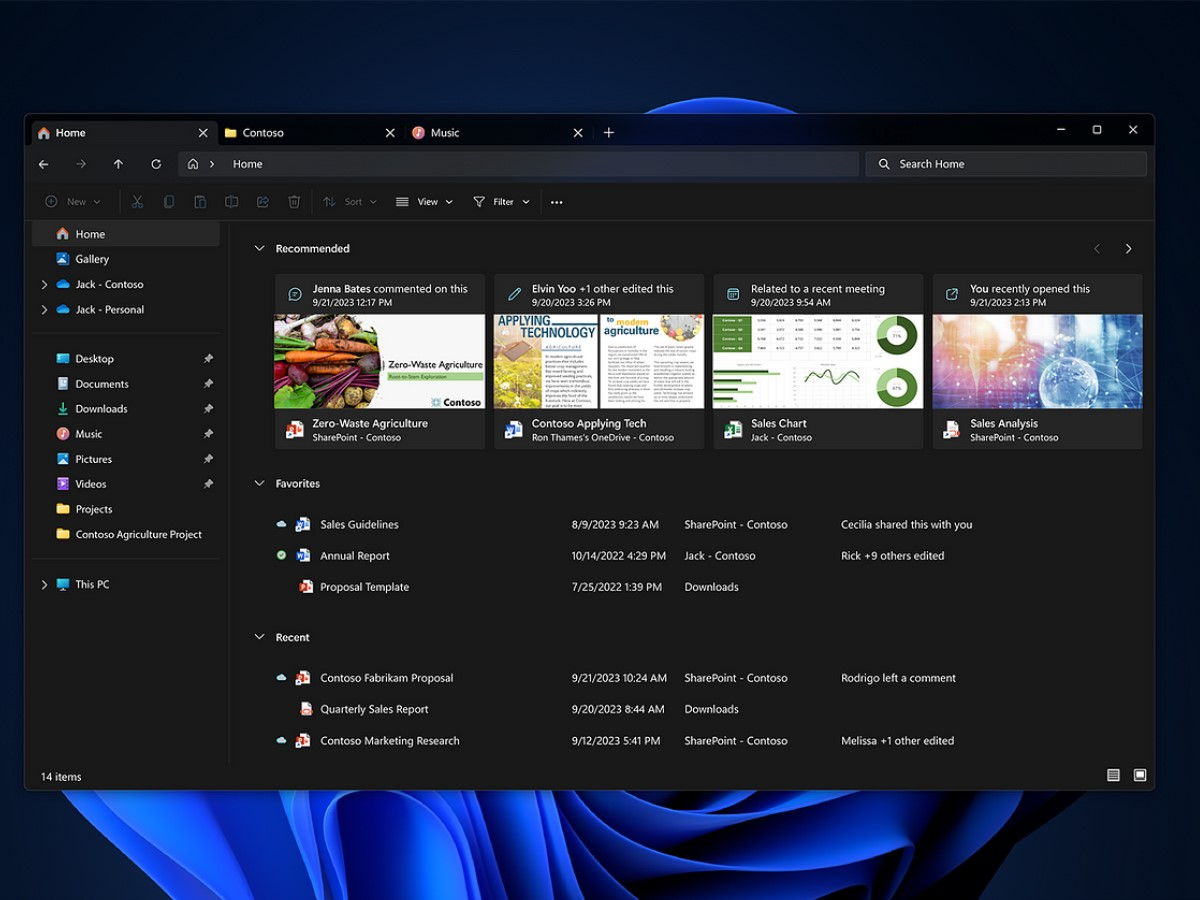
How to Use Background Blur in Windows 11’s Photos App:

The Photos app in Windows 11 offers AI-powered features, including improved image search for OneDrive accounts. To use the “Background Blur” feature:

  • Select an image in the Photos app.
  • Click “Edit image” and choose “Background Blur.”
  • Choose to enable the blur effect instantly, adjust its intensity, or use the “Selection brush tool.”
  • The Selection brush tool allows you to manually select areas to blur or unblur, adjust brush size, and brush softness.

These AI enhancements in Windows 11’s native apps make tasks like image generation, video editing, text recognition, and image editing more convenient and creative. Explore these features to make the most of your Windows 11 experience.


Also Read: The University of Florida Unveils Malachowsky Hall: A Starship for AI and Data Science


Previous Post

Only a Hunter’s Keen Eyes Can Find the 2 Snow Leopards Hidden In This Mountain Optical Illusion

Next Post

Figma Introduces FigJam AI to Streamline Design and Planning

francoise hardy

Françoise

Francoise Hardy, A digital content creator and tech integration specialist with over 10 years of experience, is known for his deep knowledge in AI, ML, Data Science, Robotics, and Neural Networks. He began his career with a passion for emerging technologies, leading to innovative solutions and digital transformation in various businesses. Francoise's expertise extends to the ethical aspects of technology, advocating for responsible usage. Recognized by his peers, he is a sought-after speaker and writer in the tech industry. His commitment to advancing technology for societal benefit defines his career.

Next Post
Figma Introduces FigJam AI

Figma Introduces FigJam AI to Streamline Design and Planning

  • Trending
  • Comments
  • Latest
top Yield Farming Platforms

Top 13 Yield Farming Platforms in 2026: Maximize APY with Secure and Trusted Crypto Tools

January 4, 2026

What are 10 Largest AI Data Centers in the World?

December 15, 2025
Best NFT discord servers

[Updated] Top 13 NFT Discord Servers (Groups) to Join In 2025 with Channel Name

April 22, 2025
AI Courses on edx

Best edX AI Courses and Certifications in 2024 (FREE and Paid)

August 27, 2024
Perplexity Campus Strategist Program 2024

Perplexity Campus Strategist Program 2024: How to Apply and Key Benefits

Gaurav Chaudhary Net Worth

Gaurav Chaudhary Net Worth – Technical Guruji, Indian YouTuber

Best AI Development Platforms and Tools in 2026

All About Canva Tools & Features

How to Use Canva AI Tools and Features to Enhance Your Posts and Designs?

Best AI Model for Every Task: Image, Video, PPT and More

June 17, 2026
Agentic-AI

What is Agentic AI? Check How it Works with Real-Life Agentic AI Automation Examples

June 14, 2026
Free Online Vocal Remover AI Tools

13 Best Free Online Vocal Remover AI Tools in 2026

January 4, 2026
top Yield Farming Platforms

Top 13 Yield Farming Platforms in 2026: Maximize APY with Secure and Trusted Crypto Tools

January 4, 2026

Recent News

Best AI Model for Every Task: Image, Video, PPT and More

June 17, 2026
Agentic-AI

What is Agentic AI? Check How it Works with Real-Life Agentic AI Automation Examples

June 14, 2026
Free Online Vocal Remover AI Tools

13 Best Free Online Vocal Remover AI Tools in 2026

January 4, 2026
top Yield Farming Platforms

Top 13 Yield Farming Platforms in 2026: Maximize APY with Secure and Trusted Crypto Tools

January 4, 2026

Trending in AI

  • Perplexity CEO Net Worth
  • Grammarly AI Detection
  • What is LangChain
  • Canva AI Tool
  • Koupon AI
Tech Chilli

Tech Chilli is a beacon of knowledge, a relentless purveyor of the latest information, news, and groundbreaking research in the realm of cutting-edge technology.

We are dedicated to curating and delivering the most relevant, accurate, and up-to-the-minute information on the technologies that are shaping our world.
Contact us – su*****@********li.com

Follow Us

Browse by Category

  • AI
  • AI India
  • AI Tools
  • Courses
  • Crypto
  • Featured
  • FinTech
  • Gaming
  • How-To
  • News
  • Puzzles
  • Robotics

Top Searches

  • Scott Wu Net Worth
  • Mira Murati Net Worth
  • Online Games for Couples
  • Amazon Q vs Microsoft Copilot
  • DarkGPT

Recent News

Best AI Model for Every Task: Image, Video, PPT and More

June 17, 2026
Agentic-AI

What is Agentic AI? Check How it Works with Real-Life Agentic AI Automation Examples

June 14, 2026
Free Online Vocal Remover AI Tools

13 Best Free Online Vocal Remover AI Tools in 2026

January 4, 2026
top Yield Farming Platforms

Top 13 Yield Farming Platforms in 2026: Maximize APY with Secure and Trusted Crypto Tools

January 4, 2026
  • About Us
  • Privacy Policy
  • Disclaimers
  • Terms and Conditions
  • Contact Us
  • DMCA Policy

© 2025 Tech Chilli

No Result
View All Result
  • AI
  • AI India
  • Robotics
  • Fintech
  • Crypto
  • Courses
  • How-To
  • Gaming
  • Contact Us

© 2025 Tech Chilli

We use cookies to ensure that we give you the best experience on our website. If you continue to use this site we will assume that you are happy with it.